Back to posts
How to Access and Fix Claro's Hefei Radiotech Modem Login
Fredy Acuna / June 25, 2025 / 5 min read
This guide provides a step-by-step tutorial on how to access the advanced configuration panel of the Hefei Radiotech RTCD905H6W4 (DOCSIS 3.0 eMTA) modem, provided by Claro. It also includes a crucial fix for a common firmware update issue that prevents login access.
Step 1: Find Your Modem's Default Gateway
To connect to your modem, you first need to find its IP address, also known as the "Default Gateway".
For Windows Users:
- Open the Command Prompt. You can do this by searching for 'cmd' in the Start Menu.
- Type the following command and press Enter:
ipconfig- In the results, look for the "Default Gateway" address under your active network connection. It is typically something like '192.168.20.1'.
For macOS Users:
- Open Terminal. You can find it in Applications > Utilities > Terminal, or search for "Terminal" using Spotlight (Cmd + Space).
- Type the following command and press Enter:
netstat -nr | grep default- In the results, look for the "default" entry. The IP address next to it is your Default Gateway, typically something like '192.168.20.1'.
Alternative for macOS (if the above doesn't work):
You can also use this command in Terminal:
route -n get defaultLook for the "gateway" entry in the output.
Step 2: Access the Advanced Login Page
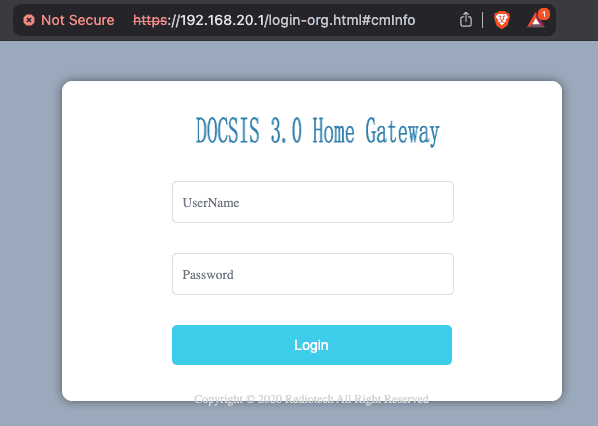
Standard access to the modem's interface is often restricted. To get to the organizational or advanced login page, you must use a specific URL.
- Open your web browser.
- In the address bar, type the Default Gateway IP you found in the previous step.
- Append the following path to the IP address: '/login-org.html#cmInfo'
The final URL should look like this:
https://192.168.20.1/login-org.html#cmInfo
After pressing Enter, you should see the advanced login screen.
Step 3: Use the Correct Credentials
To log in, use the following credentials:
- USUARIO (Username): admin
- CLAVE (Password): ZP9Lw$fGyUD
If those credentials do not work, you can try other common combinations.
| USUARIO | CLAVE |
|---|---|
| admin | ZP9Lw$fGyUD |
| admin | admin |
| admin | cl@r0 |
| admin | !T3lgu@ |
| root | root |
| Administrator | !T3lgu@ |
| (Leave blank) | admin |
Note: "(Leave blank)" means to leave the username field empty.
Troubleshooting: Fixing the Login Redirect Issue
Many Hefei Radiotech RTCD905H6W4 modems have received a firmware update from the ISP (Claro) that blocks access to the advanced settings. This update redirects you from the correct login page to a "fail" page ('http://192.168.20.1/login.html#fail').
The Cause
The firmware update adds a specific JavaScript snippet to the 'login-org.html' page. This script checks if you are accessing the page from a local IP address ('192.168...') and, if so, redirects you away from the login form.
Here is the problematic code:
<script type="text/javascript">
    var host = window.location.host;
    lognote(host.indexOf("192.168"));
    if (host.indexOf("192.168") != (-1)) {
        window.location.href = 'http//' + window.location.host + '/' + '#fail';
    }
    $(function() {
        $('input, textarea').placeholder();
    });
</script>
The Solution: Bypass the Redirect with uBlock Origin
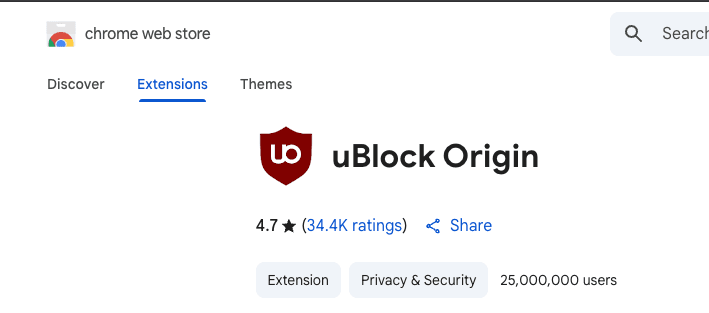
To solve this, you can use the browser extension uBlock Origin to block the script from executing the redirect.
Note: The user who provided this solution noted they had to use the Brave browser to successfully install and configure the extension.
-
Install uBlock Origin: Add the uBlock Origin extension to a Chromium-based browser like Brave or Google Chrome from their respective web stores.
-
Open uBlock Origin Settings: Click the uBlock Origin icon in your browser's toolbar and click the Dashboard (gear) icon to open the settings.
-
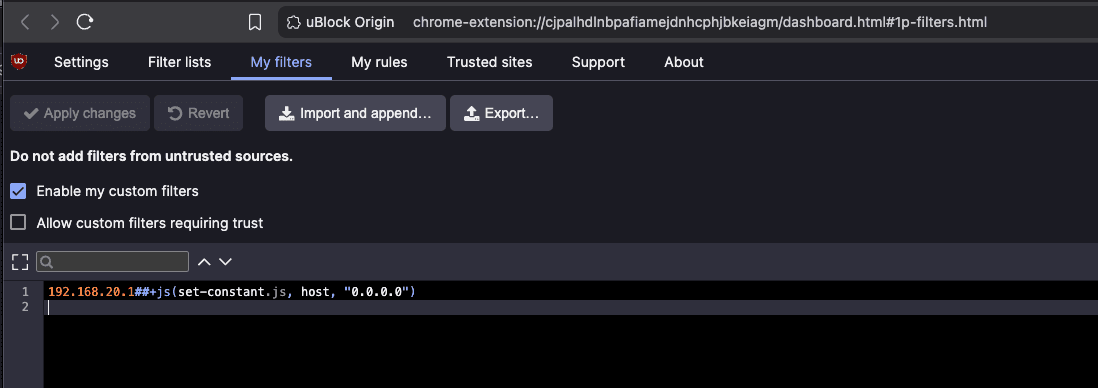
Go to "My Filters": Navigate to the "My filters" tab in the dashboard.
-
Add the Filter Rule: Copy and paste the following rule into the text area:
192.168.20.1##+js(set-constant.js, host, "0.0.0.0")This rule tells uBlock to effectively hide your real local IP from the script, which tricks it into not running the redirect.
- Apply Changes: Click the "Apply changes" button.
And that's it! You should now be able to access the advanced login page at 'https://192.168.20.1/login-org.html#cmInfo' without being redirected.
Updating Your WiFi Password
Once you have successfully logged in, you can update your WiFi password to secure your network. The password change option is hidden by default, but you can access it using your browser's developer tools.
Step 1: Navigate to WiFi Settings
- After logging in, look for WiFi Settings or WiFi(5G) Settings in the modem's interface.
- Click on the appropriate WiFi settings section.

Step 2: Access Developer Tools
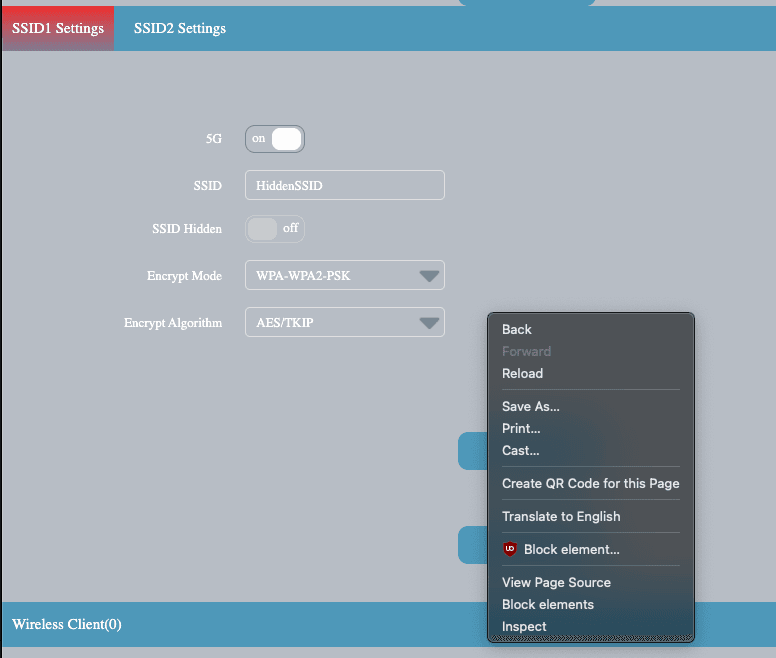
- In the Encrypt Algorithm section, right-click on the page.
- Select Inspect from the context menu to open your browser's developer tools.
Step 3: Uncomment the Password Field
- In the "Elements" tab of the developer tools, search (Ctrl+F or Cmd+F) for '') to uncomment this section.
- The password input field will now appear in the interface.
Step 4: Update Your Password
- Enter your new WiFi password in the newly visible password field.
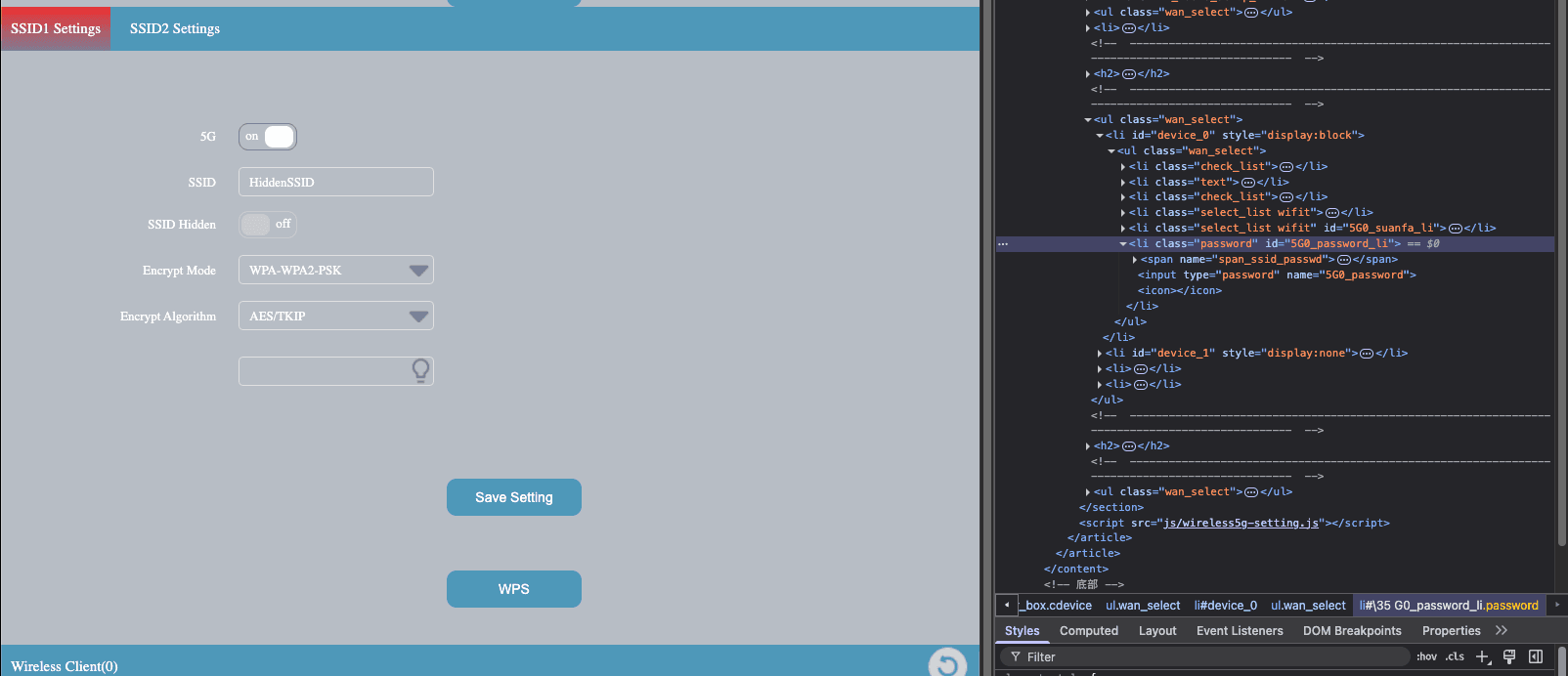
- Click Save Changes to apply the new password.
Note: Make sure to remember your new password. You will need to reconnect all your WiFi devices to the network using this new password.
Conclusion
By following this guide, you've not only regained access to your modem's advanced settings but have also taken a crucial step in securing your home network. You now have the tools and knowledge to manage your Hefei Radiotech modem effectively. Keep exploring, and stay secure!